


TEKWIKI / PRACTICAL GUIDE · #TEKLink219
Download recovered data with FileZilla over SFTP
After a recovery stage or data handover, TUNGTEK may provide a server account so customers can download their data. This guide covers a safe SFTP connection, the transfer, and checks after receipt.
Contents
1. How do FTP, FTPS and SFTP differ?#
The original TEKWiki article used the familiar term “FTP download”. Its port 22 configuration corresponds to SFTP, file transfer over SSH. SFTP is distinct from plain FTP and from FTPS (FTP secured with TLS).
| Protocol | What to know |
|---|---|
| Plain FTP | Usually port 21; credentials and file contents are not encrypted without an additional protection layer. |
| FTPS | FTP protected with TLS; port 21 or 990 may be used according to server configuration. |
| SFTP | File transfer over SSH; port 22 by default unless the handover specifies another port. This guide uses SFTP. |
2. Prepare before downloading#
- A Windows computer with a stable Internet connection and a healthy destination drive with enough free space.
- The Host, Port, username, password and remote folder supplied for this particular handover by TUNGTEK.
- A separate destination folder such as
D:\TRecovery\DuLieuDaNhan; this is only an example. - A file list, total size and reference SHA-256 hashes if supplied with the handover.
3. Download with FileZilla Client#
Step 1 — Install FileZilla Client
Get the Client from the official FileZilla download page. Review installer choices and avoid unknown download mirrors.
Step 2 — Enter the SFTP connection
In Quickconnect, enter the Host, Username, Password and Port from your handover details. Prefix the Host with sftp://, or select SFTP - SSH File Transfer Protocol in File → Site Manager. Port 22 is the default, not a universal setting.
Step 3 — Verify the SSH host key
On first connection, compare the server fingerprint with information TUNGTEK sent through a trusted channel before accepting or saving the key. Stop and contact support if a previously trusted key changes unexpectedly.
Step 4 — Choose the destination and download
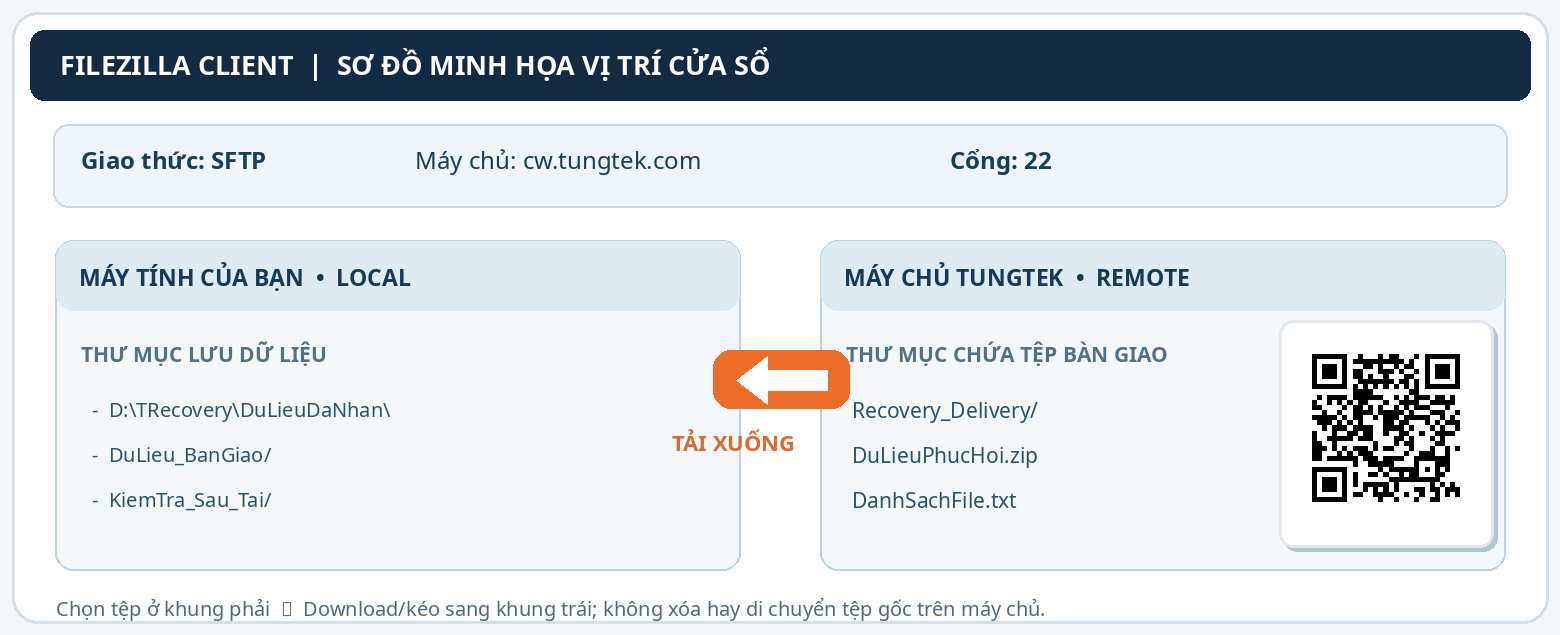
The left pane (Local site) is your computer; the right pane (Remote site) is the server. Choose the destination on the left, then select files or folders on the right and use Download or drag from right to left.
 View large ↗
Step 5 — Monitor the queue
Review the transfer queue and Failed transfers. Resolve and retry failed items; one completed file does not mean the whole data set is complete.
Step 6 — Verify the received data
Compare the list, count and size of files, and open a sample of important items. For large files or multipart archives, compare SHA-256 hashes against values supplied by the sender if available. Do not delete the server copy before confirming receipt and the retention period.
4. Check SHA-256 on Windows#
When TUNGTEK supplies a reference hash, open Command Prompt and replace this example path with your actual file:
certutil -hashfile "D:\TRecovery\DuLieuDaNhan\DuLieuPhucHoi.zip" SHA256Compare the entire SHA-256 value with the sender’s reference. A match shows the received file matches the file used to calculate that reference; a hash calculated only on your computer, without a reference value, cannot by itself prove a match.
5. Common problems and safe responses#
| Symptom | Safe response |
|---|---|
| Cannot connect | Check Internet, Host, Port, firewall/VPN and account validity. Do not switch to unencrypted FTP. |
| Wrong credentials | Re-enter carefully without extra spaces; request a reset if needed. Never post the password publicly. |
| SSH host key changed | Do not immediately click Trust. Verify the fingerprint with support via a trusted channel. |
| Timeout or disconnect | Check the connection, reconnect and review failed queue entries; avoid overwriting verified files. |
| Destination drive full | Pause; free space or choose a healthy drive, then check incomplete downloads. |
| Corrupt or missing file | Check all archive parts, sizes and SHA-256 values when available; send the failed filenames to support. |
6. Handover and security checklist#
- Verified server identity and SSH fingerprint through a trusted source.
- Saved to a healthy drive, not the recovery source.
- Resolved failed transfers and checked partial files.
- Checked important sample files and supplied checksums.
- Retained the handover record/file list; did not share the password.
- Will remove the server copy only after agreeing on retention with TUNGTEK.
7. When should you contact TUNGTEK?#
If the server is inaccessible, the SSH key changes unexpectedly, files will not open or data is missing from the handover list, send your case ID, time, filenames and a screenshot with login details hidden.
🇻🇳 Data incident? Call TUNGTEK.
TRecovery by TUNGTEK can review the handover against the actual case details.
0963 509 115Sources and editorial notes#
- Original TUNGTEK TEKWiki (22 February 2024)
- FileZilla — Quick Guide
- FileZilla Client — official download
Edited 29 October 2026. The diagram is conceptual, not an application screenshot or confirmation that the illustrated server is active. No customer credentials or data are published.